Beginner Level Questions
1. What is HTML?
Imagine you're building with LEGOs. HTML is like the instruction manual that tells you where to put each brick! It helps your computer know where to put words, pictures, buttons, and links on a webpage, so everything looks nice and organized.
2. What does HTML stand for?
HTML is like a secret code name for "HyperText Markup Language."
- HyperText: This is like magic text that can jump you to other pages when you click it!
- Markup: This means using special little signs (we call them "tags") to tell the computer how your words and pictures should look.
- Language: This just means it's a way for you to talk to the computer and tell it what to do.
3. What are HTML tags?
HTML tags are like special labels or sticky notes you put on your content. They tell the web browser, "Hey, this is a paragraph!" or "This is a picture!" They usually come in pairs, like <p> to start a paragraph and </p> to end it. You always put them inside pointy brackets, like < >. They help make your webpage neat and tidy!
4. What is the structure of an HTML document?
Think of an HTML document like a house!
<!DOCTYPE html>
<html>
<head>
    <title>Page Title</title>
</head>
<body>
    <p>This is the main content.</p>
</body>
</html>
<!DOCTYPE html> is like a sign that says, "This is a webpage house!"<html> is the whole house itself, wrapping everything inside.<head> is like the roof of the house. It holds secret information about the page that you don't see, like the page's name (the <title> tag) and links to its clothes (CSS styles).<body> is like the inside of the house – this is where all the fun stuff goes! All the words, pictures, buttons, and videos you see on the webpage live here.
5. What is the <html> tag used for?
The <html> tag is like the big, main box that holds everything else on your webpage. It tells the browser, "Okay, everything inside me is HTML!" It's the very first tag after the <!DOCTYPE html> declaration.
6. What does the <head> tag contain?
The <head> tag is like the brain of your webpage! It holds important information that the user doesn't see directly on the page, but the browser needs to know. This includes:
- The page's title (what shows up in your browser tab), like
<title>My Awesome Page</title>.
- Links to stylesheets (CSS files) that tell the page how to look pretty.
- Meta information, which is like little notes for search engines (like Google) to understand what your page is about.
7. What is the purpose of the <body> tag?
The <body> tag is where all the fun stuff lives! It's like the main stage of your webpage. Everything you see and interact with – words, pictures, buttons, videos, forms – all goes inside the <body> tag. If it's not in the body, you won't see it!
8. What is the difference between <div> and <span>?
Both <div> and <span> are like invisible boxes you use to group things on your webpage, but they act a little differently:
<div> (Block-level): Imagine a big, rectangular LEGO brick. A <div> always takes up its own whole line, like a new paragraph. It's great for big sections of your page.<span> (Inline-level): Now imagine a tiny, flat LEGO piece. A <span> stays right in line with other text, like a single word in a sentence. It's perfect for styling just a small part of text or a few words.
9. How do you create a hyperlink in HTML?
To make a link that jumps you to another page when you click it, you use the <a> tag. The "a" stands for "anchor."
<a href="https://www.google.com">Visit Google</a>
- The
href part is like the address of where you want to go (the website's URL).
- The words between
<a> and </a> (like "Visit Google") are what you see and click on.
10. How do you insert an image in HTML?
To put a picture on your webpage, you use the <img> tag. It's a special tag that doesn't need a closing tag!
<img src="image.jpg" alt="A beautiful image">
src is super important! It tells the browser where to find your picture (the file name or a link to it).alt is like a backup message. If your picture can't show up, or if someone is using a special screen reader that reads the page aloud, this text will tell them what the picture was supposed to be. It's really helpful!
11. What are void elements in HTML?
Void elements are like special HTML tags that are complete all by themselves! They don't need a partner closing tag because they don't wrap around any content. They just do their job and that's it!
Some examples are:
<br> (for a line break, like pressing Enter)<img> (for an image)<hr> (for a horizontal line)
They work on their own, like a one-word sentence!
12. What is the purpose of the <title> tag?
The <title> tag is like the name of your webpage! It's the text you see at the very top of your browser tab or window. It also helps search engines (like Google) understand what your page is all about, so people can find it easily.
<head>
    <title>My First Awesome Website</title>
</head>
13. What is the use of the <br> tag?
The <br> tag is super simple! It just means "break" or "new line." When you put it in your text, it's like pressing the "Enter" key on your keyboard – it makes whatever comes next start on a brand new line.
Hello<br>World
This will show up like:
Hello
World
14. How do you make a list in HTML?
You can make two kinds of lists to organize your stuff:
- Ordered list (
<ol>): This is for lists that need numbers, like steps in a recipe.
- Unordered list (
<ul>): This is for lists that use bullet points, like a shopping list.
Inside both of these, you use the <li> tag for each item in your list.
<ul>
    <li>Apple</li>
    <li>Banana</li>
</ul>

<ol>
    <li>First step</li>
    <li>Second step</li>
</ol>
15. What is the difference between <ul>, <ol>, and <li>?
They are like a team that works together to make cool lists!
<ul> = Unordered List (makes bullet points •)<ol> = Ordered List (makes numbered lists 1., 2., 3.)<li> = List Item (this is each single thing you put in your list)
16. What are HTML attributes?
HTML attributes are like extra notes or special instructions you give to an HTML tag. They go right inside the opening tag and give it more information about how it should act or look.
<img src="cat.jpg" alt="Cute Cat">
src is an attribute that tells the <img> tag WHERE to find the picture.alt is another attribute that DESCRIBES the picture if it can't be seen.
17. How do you create a table in HTML?
Tables are like grids you use to show information in neat rows and columns, like a schedule or a list of friends with their ages. You start with the <table> tag, and then use these special tags inside:
<tr>: This is for a Table Row (like a new line in your grid).<td>: This is for Table Data (each little box or cell where you put information).<th>: This is for Table Heading (the title for each column, usually bold and centered).
<table>
    <tr>
        <th>Name</th>
        <th>Age</th>
    </tr>
    <tr>
        <td>John</td>
        <td>10</td>
    </tr>
</table>
18. How do you open a link in a new tab?
Sometimes, when you click a link, you want the new page to open in a brand new tab, so you don't lose the page you were just on! To do this, you add a special instruction called target="_blank" inside your <a> tag.
<a href="https://example.com" target="_blank">Open Website in New Tab</a>
The _blank part tells the browser, "Hey, open this link in a fresh, new tab!"
19. What is the use of the alt attribute in <img>?
The alt attribute in an <img> tag is like a helpful little note for your picture. It does two main things:
- If for some reason your picture can't show up (maybe the internet is slow, or the picture file is missing), the text in
alt will show up instead, so people still know what was supposed to be there.
- It helps people who use screen readers (special tools that read webpages aloud for people who can't see well). The screen reader will read the
alt text, so they understand what the picture is about.
<img src="dog.jpg" alt="A happy brown dog running in a field">
20. How do you add comments in HTML?
Comments are like secret notes you write in your code! They don't show up on the actual webpage, so only you (or other coders) can see them. They're super useful for reminding yourself what a part of your code does or explaining tricky bits to others.
The special way to write them is:
<!-- This is a comment, it won't show on the page -->
<!-- You can write anything here, like: This is my navigation section -->
21. What is the difference between block-level and inline elements?
This is about how HTML elements act on the page, like how LEGO bricks fit together:
- Block-level elements: These are like big, full-width LEGO bricks. They always start on a new line and take up all the space across the page they can get. Examples are
<div>, <p> (paragraph), and <h1> (big heading).
- Inline elements: These are like small LEGO pieces that fit right next to each other on the same line. They only take up as much space as they need. Examples are
<span>, <a> (link), and <img> (image).
22. What is the purpose of the id attribute?
The id attribute is like giving a special, unique name to just ONE thing on your webpage. Imagine you have a bunch of toys, and you give one toy a special name, "MyFavoriteRobot." No other toy can have that exact name!
You use id when you want to:
- Give it a special style that no other element has.
- Find and control it with JavaScript (like making it disappear or change color).
- Link directly to it from another part of the page.
<p id="welcome-message">Welcome to my super cool site!</p>
Remember, only one element on the whole page can have the same id!
23. How is the class attribute used?
The class attribute is like giving a label to a group of things that are similar. Imagine you have a box of LEGO bricks, and you label some "Red Bricks" and others "Blue Bricks." You can have many "Red Bricks"!
You use class when you want to:
- Apply the same style (like color or size) to many different elements at once using CSS.
- Make many elements behave the same way with JavaScript.
<p class="info-text">This is important info.</p>
<p class="info-text">This is more important info.</p>
<div class="info-text">And this is also important!</div>
Now, all elements with the class "info-text" can be styled the same way!
24. What is semantic HTML?
Semantic HTML is like using special, meaningful labels for your content instead of just plain boxes. Instead of just saying "this is a box of stuff," you say "this box is the main story" or "this box is the bottom part of the page."
It helps both people (especially those using special tools) and computers (like search engines) understand what each part of your webpage is actually for.
Examples of semantic tags:
<header>: For the top part of your page (like a website's name or logo).<footer>: For the very bottom part (like copyright info or contact details).<nav>: For navigation links (like your menu).<article>: For a complete piece of content, like a blog post or news story.<section>: For a group of related content within a page.<main>: For the main, important content of your page.
Using these tags makes your website's structure super clear and organized!
25. What is the <form> tag used for?
The <form> tag is like a special collection box on your webpage! It's used to gather information that people type in or choose. Think about when you fill out a survey, sign up for something, or log into a website – that's usually inside a <form>!
It holds all the different parts where you put information, like text boxes, buttons, and choices.
26. What are the input types in HTML?
The <input> tag is like a magic box that can change what it does based on its "type" attribute! There are many different types of input boxes for different kinds of information you want from the user:
type="text": For regular words or sentences.type="password": For secret words (it shows stars instead of letters).type="email": For email addresses.type="checkbox": For choosing many options (like picking all your favorite colors).type="radio": For choosing only ONE option from a group (like picking your gender).type="submit": This makes a button that sends all the form info away.type="file": For letting people upload files from their computer.type="number": For only typing numbers.
Each type helps you get exactly the kind of information you need!
27. What is the <label> tag used for?
The <label> tag is like a helpful little sign for your input boxes! It tells the user what they need to type in or choose for that box.
<label for="your-name">Your Name:</label>
<input type="text" id="your-name">
See how the for="your-name" in the label matches the id="your-name" in the input? This connects them! It also makes it easier to click on the label itself to put your cursor in the input box, which is super helpful for everyone, especially if they use special tools to browse the web.
28. What is the difference between <input type="text"> and <textarea>?
Both of these are for typing words, but they are used for different amounts of text:
<input type="text">: This is like a tiny, single-line notepad. It's for short answers, like your name or a single sentence.<textarea>: This is like a big, multi-line notebook! It's for long messages, comments, or anything where you need lots of space to write many lines of text.
<!-- For short answers -->
<input type="text" placeholder="Your name">

<!-- For long messages -->
<textarea placeholder="Write your message here" rows="5" cols="30"></textarea>
29. How do you create a checkbox in HTML?
A checkbox is like a little square box you can click to put a checkmark in! You use <input type="checkbox"> when you want people to be able to pick one or more options from a list. Think about choosing all your favorite ice cream flavors – you can pick many!
<label>
    <input type="checkbox" name="fruit" value="apple"> Apple
</label>
<label>
    <input type="checkbox" name="fruit" value="banana"> Banana
</label>
30. How do you create radio buttons?
Radio buttons are like little circles you can click! You use <input type="radio"> when you want people to choose ONLY ONE option from a group. Imagine picking your favorite color – you can only have one favorite!
<label>
    <input type="radio" name="gender" value="male"> Male
</label>
<label>
    <input type="radio" name="gender" value="female"> Female
</label>
The trick is that all radio buttons in a group must have the same name attribute (like "gender" above). This tells the browser they belong together, so only one can be picked at a time!
31. What is the purpose of the <select> tag?
The <select> tag is used to make a drop-down menu, like when you choose your country or state from a list. It's great for giving users many choices without taking up too much space on the page.
<select>
    <option value="apple">Apple</option>
    <option value="banana">Banana</option>
    <option value="orange">Orange</option>
</select>
When you click on it, a list of options drops down, and you can pick one!
32. What is the <option> tag used for?
The <option> tag is like each individual choice you put inside your drop-down menu (<select> tag). Each <option> is one item that a user can pick from the list.
<select>
    <option value="dog">Dog</option>
    <option value="cat">Cat</option>
    <option value="bird">Bird</option>
</select>
Here, "Dog," "Cat," and "Bird" are the choices you can see and pick!
33. What are meta tags?
Meta tags are like secret notes you put in the <head> section of your HTML page. They give extra information about your webpage that isn't shown to the user, but is very important for browsers and search engines.
They can tell things like:
- What your page is about (a short description).
- Who made the page (the author).
- Keywords that help people find your page on Google.
<meta charset="UTF-8">
<meta name="description" content="This is my super cool portfolio website!">
<meta name="author" content="Coder Kid">
They help your page show up better in search results!
34. How do you include a favicon in HTML?
A favicon is that tiny little picture you see in your browser tab, right next to the page's title! It helps people recognize your website quickly. You add it using a <link> tag inside the <head> section of your HTML.
<link rel="icon" href="favicon.ico" type="image/x-icon">
The href points to your tiny picture file (usually a .ico or .png file).
35. What is the role of the action attribute in a form?
The action attribute in a <form> tag is like telling the form, "When someone clicks the 'Submit' button, send all this information to THIS address!" It's the web address (URL) where your form data will go.
<form action="/submit-my-form">
    <!-- input fields here -->
</form>
If you leave action="" empty, the form will send the data back to the same webpage it's currently on.
36. What is the difference between GET and POST in forms?
These are two different ways your form can send information:
- GET: This is like sending a postcard! The information you type in the form gets added to the website address (URL) at the top of your browser. Everyone can see it! It's good for things like searching, where the info isn't secret.
- POST: This is like sending a secret message in a locked box! The information is sent behind the scenes, so it's not visible in the website address. This is super important for things like logging in or sending private messages, where you don't want anyone to see your passwords or personal info.
<!-- Using GET for a search form -->
<form method="GET" action="/search">
    <input type="text" name="query">
    <button type="submit">Search</button>
</form>
<!-- URL might look like: /search?query=my+search+term -->

<!-- Using POST for a login form -->
<form method="POST" action="/login">
    <input type="text" name="username">
    <input type="password" name="password">
    <button type="submit">Login</button>
</form>
<!-- URL stays clean, data is sent secretly -->
37. What is the <fieldset> and <legend> used for?
These two tags work together to make your forms look neat and organized, like putting a frame around a group of related pictures!
<fieldset>: This tag draws a box around a group of related form parts (like all the boxes for your address).<legend>: This tag gives a title to that box, so people know what the group of form parts is about.
<fieldset>
    <legend>Personal Info</legend>
    <input type="text" placeholder="Your name">
    <input type="email" placeholder="Your email">
</fieldset>
38. What is the use of the <iframe> tag?
The <iframe> tag is like a little window on your webpage that lets you show another webpage right inside it! Imagine having a tiny TV screen on your wall that plays a different channel – that's what an iframe does.
<iframe src="https://example.com" width="300" height="200"></iframe>
You can use it to embed maps, videos from YouTube, or even other websites directly into your page.
39. What is the purpose of the <nav> tag?
The <nav> tag is like the "map" section of your webpage! It's used to hold all the important links that help people move around your website, like "Home," "About Us," or "Contact." It tells browsers and special tools, "Hey, these links are for navigation!"
<nav>
    <a href="/home">Home</a>
    <a href="/about">About</a>
    <a href="/contact">Contact</a>
</nav>
40. What is the use of the <footer> and <header> tags?
These tags are like the top and bottom parts of a book, helping to organize your webpage:
<header>: This is for the top section of your page. It often holds things like your website's logo, name, or a big title. Think of it as the very first thing you see when you open a book.<footer>: This is for the very bottom section of your page. It usually has things like copyright information, contact details, or small links. Think of it as the last page of a book where you find extra info.
<header>
    <h1>My Awesome Website</h1>
</header>

<!-- Main content goes here -->

<footer>
    <p>© 2025 All rights reserved.</p>
</footer>
They help make your page easy to understand and well-structured!
Intermediate Level Questions
41. What is the DOM in HTML?
The DOM stands for "Document Object Model," and it's like a magical map or a family tree of your HTML page! When your web browser reads your HTML code, it turns every single tag (like <p>, <div>, <img>) into a little "object" or a "node."
Imagine your webpage is made of LEGO blocks. The DOM is the way the computer sees all those blocks, how they're connected, and what's inside them. This special map lets computer programs (especially JavaScript) find any part of your webpage, change its words, change its color, or even make it disappear!
42. What are HTML5 semantic elements?
HTML5 semantic elements are like super smart labels for your webpage parts! Instead of just using plain old <div> tags everywhere (which are like generic boxes), these new tags actually tell you what kind of content is inside them. They have "meaning"!
For example:
<header>: This means "the top part of a section or page."<footer>: This means "the bottom part of a section or page."<nav>: This means "navigation links."<article>: This means "a complete, standalone piece of content, like a blog post."<section>: This means "a group of related content."<main>: This means "the main and most important content on the page."
Using these helps search engines (like Google) understand your page better, and it also makes your code much easier for other coders to read and understand!
43. What is the difference between HTML and HTML5?
HTML is like the older version of a toy, and HTML5 is the brand new, super-improved version!
- HTML (Older): This was the original way to build webpages.
- HTML5 (Newer and Better!): This is the latest and greatest version. It comes with lots of cool new features that make building modern websites much easier and more powerful:
- You can easily put videos and music right on your page without needing extra plugins (using
<video> and <audio> tags).
- It has those "semantic" tags we just talked about (
<main>, <section>, <article>) to make your page structure clearer.
- It works much better on phones and tablets.
- It's faster and smarter for today's web development!
44. What is the <article> tag used for?
The <article> tag is like a special box for a complete story or a whole piece of content that could stand on its own. Imagine a blog post, a news story, a comment, or a product review – each of these could go inside an <article> tag.
It helps tell the browser, "This is a self-contained piece of content, like a mini-document within the main page!"
<article>
    <h2>My Travel Blog: Mountains Adventure!</h2>
    <p>I went to the mountains last week and it was amazing!</p>
    <!-- More content about the trip -->
</article>
45. What is the <section> tag used for?
The <section> tag is like dividing your webpage into different chapters of a book. Each <section> groups together content that is related to a specific theme or topic on your page.
For example, on an "About Us" page, you might have one <section> for "Our History," another for "Our Team," and another for "Our Mission."
<section>
    <h2>Our Services</h2>
    <p>We offer awesome web design and super SEO tricks.</p>
</section>

<section>
    <h2>Our Team</h2>
    <p>Meet the amazing people who make it all happen!</p>
</section>
46. What is the <aside> tag used for?
The <aside> tag is like a little side note or a sidebar in a magazine! It's for content that is related to the main story on your page, but it's not the main point itself. It's usually something like tips, extra info, advertisements, or fun facts.
<aside>
    <h4>Did You Know?</h4>
    <p>Cats sleep for 13-16 hours a day!</p>
</aside>
47. What is the purpose of the <main> tag?
The <main> tag is like the big, important "star" of your webpage! It holds the main content that is unique to that particular page. It tells browsers and search engines, "This is what this page is REALLY about!"
You should only have ONE <main> tag on each HTML page, and it shouldn't include things like the header, footer, or navigation bar, because those parts are usually the same across many pages.
<main>
    <h1>Welcome to My Website!</h1>
    <p>This is where you'll find all my awesome blog posts and stories.</p>
    <!-- All the unique content for this page -->
</main>
48. How do you embed audio and video in HTML?
HTML5 made it super easy to put music and videos right on your webpage without needing extra programs! You use the <audio> tag for sound and the <video> tag for videos.
For audio:
<audio controls>
    <source src="song.mp3" type="audio/mpeg">
    Your browser does not support the audio element.
</audio>
For video:
<video width="300" controls>
    <source src="movie.mp4" type="video/mp4">
    Your browser does not support the video tag.
</video>
The controls attribute adds play, pause, and volume buttons. The <source> tag tells the browser where to find the media file and what type it is.
49. What is the use of the <canvas> element?
The <canvas> tag is like a blank drawing board or a digital painting canvas on your webpage! You can't draw on it directly with HTML. Instead, you use JavaScript code to draw all sorts of cool things on it, like shapes, charts, games, or even animations!
<canvas id="myCanvas" width="400" height="200"></canvas>
Once you draw something on it, it's like paint on a real canvas – you can't easily change just one part of it; you usually redraw the whole thing.
50. How does the <svg> element differ from <canvas>?
Both <svg> and <canvas> are used for drawing graphics on a webpage, but they work in different ways, like drawing with pencils versus painting with brushes:
<svg> (Scalable Vector Graphics): This is like drawing with mathematical shapes (lines, circles, squares) using code. Each shape you draw is remembered by the browser as a separate object. This means if you make the picture bigger, it stays super sharp and clear, never blurry! It's great for logos, icons, and charts.<canvas>: This is like painting on a blank canvas using JavaScript. You tell it to draw pixels. If you make the picture bigger, it might look a little blurry, just like a photo blown up too much. It's great for complex games and animations where you're constantly changing many pixels.
Think of it this way: <svg> is like building with LEGOs (each piece is separate and can be moved). <canvas> is like drawing on paper (once it's drawn, it's part of the whole picture).
51. What are custom data attributes in HTML5?
Custom data attributes are like adding your own secret little notes or extra information directly into any HTML tag! They always start with data-, followed by whatever name you want to give them (like data-user-id or data-product-price).
<div data-user-id="123" data-role="admin">John Doe</div>
<button data-item-id="456" data-price="9.99">Add to Cart</button>
You can't see these notes on the webpage, but you can easily read them and use them with JavaScript! They're super handy for passing small bits of information about an element without messing up how it looks.
52. How do you create a responsive image in HTML?
A responsive image is like a smart picture that automatically changes its size to look good on any screen, whether it's a tiny phone or a big computer monitor! You usually make images responsive using CSS.
<img src="image.jpg" style="width: 100%; height: auto;">
Or, a better way is to use CSS rules in a separate stylesheet:
img {
    max-width: 100%; /* Make sure it doesn't get bigger than its container */
    height: auto;    /* Keep the picture's correct shape */
    display: block;  /* Helps with layout */
}
This tells the image, "Be as wide as your container, but never wider than 100%, and always keep your perfect shape!"
53. What is lazy loading in HTML?
Lazy loading is like being super smart about how your webpage loads pictures! Instead of loading ALL the pictures on a page as soon as it opens (even the ones way down at the bottom that you can't see yet), lazy loading only loads pictures when you scroll close to them.
This makes your webpage open much faster, especially if it has lots of pictures! It also saves internet data for people.
You can easily turn it on by adding loading="lazy" to your <img> tag:
<img src="big-image.jpg" loading="lazy" alt="Beautiful Nature Scene">
54. What is the autocomplete attribute in forms?
The autocomplete attribute is like a helpful memory for your browser! When you fill out forms (like your name or email address), this attribute can tell the browser to remember what you typed and suggest it next time you fill out a similar form.
<input type="email" autocomplete="on">
<input type="text" name="full-name" autocomplete="name">
You can set it to "on" (to turn it on), "off" (to turn it off for sensitive info), or even specific types like "name" or "email" to help the browser suggest the right kind of info. It makes filling out forms much quicker!
55. What is the purpose of the required attribute?
The required attribute is like a strict teacher for your form fields! When you add it to an input box, it means the user MUST fill in that box before they can send (submit) the form. If they try to submit it empty, the browser will show a little warning message.
<input type="text" required placeholder="Your name (required)">
<input type="email" required>
This helps make sure you get all the important information you need from the user!
56. What is the difference between disabled and readonly?
These two attributes make an input box unchangeable, but in slightly different ways:
readonly: Use this when you want to show some information in a box, and people can read it, but they can't change it. The information WILL still be sent when the form is submitted.disabled: Use this when you want to completely turn off an input box. People can't type in it, and its information will NOT be sent when the form is submitted. It usually looks lighter or grayed out to show it's off.
57. What is the purpose of the placeholder attribute?
The placeholder attribute is like a faint, helpful hint inside an empty input box! It shows light gray text that guides the user on what kind of information they should type there. As soon as they start typing, the hint disappears.
<input type="text" placeholder="Enter your name here">
<input type="email" placeholder="your.email@example.com">
It's great for making forms super easy to understand!
58. What is the pattern attribute in HTML input?
The pattern attribute is like a secret code checker for your input boxes! It lets you set a very specific format for what people can type into the box, using something called a "regular expression" (which is like a super fancy pattern matcher).
For example, if you only want people to type 5 numbers for a ZIP code:
<input type="text" pattern="\d{5}" title="Please enter exactly 5 digits">
If the user types something that doesn't match your pattern, the browser will show a warning and won't let them submit the form until they fix it!
59. What is the novalidate attribute in forms?
Normally, your browser tries to be helpful and checks your form fields for errors before sending them (like if a "required" field is empty). But if you add the novalidate attribute to your <form> tag, it tells the browser, "Hey, don't worry about checking for errors! I'll do it myself with JavaScript!"
<form novalidate action="/submit-data">
    <!-- form fields -->
</form>
You use this when you want to build your own custom error messages and checks using JavaScript, instead of letting the browser do its default thing.
60. What are global attributes in HTML?
Global attributes are like super powers that you can use on almost any HTML tag! Most attributes (like src for images) only work on specific tags. But global attributes can be added to nearly any element to give it extra information or behavior.
Some common global attributes are:
id: Gives a unique name to one element.class: Groups elements together for styling or behavior.style: Adds direct CSS styles to an element.title: Shows a little pop-up hint when you hover over an element.hidden: Makes an element invisible.data-*: Lets you add your own custom secret notes (data) to an element.
They make it easier to control and style your webpage elements!
61. What is the contenteditable attribute?
The contenteditable attribute is like a magic switch that turns any HTML element into a tiny text editor! When you set it to "true", users can click right on that text and start typing or deleting, just like in a word document.
<div contenteditable="true" style="border: 1px solid #ccc; padding: 10px;">
    Click here to edit this text!
</div>
It's useful for things like simple notes or allowing users to customize parts of a page directly.
62. What is the draggable attribute?
The draggable attribute is like giving your HTML elements a superpower to be picked up and moved around! When you set it to "true", you can click and drag that element with your mouse, just like you drag files on your computer.
<img src="image.jpg" draggable="true" alt="Draggable Image">
<div draggable="true" style="border: 1px solid blue; padding: 10px;">
    Drag me!
</div>
To make cool things happen when you drag (like dropping it somewhere), you'll need a little help from JavaScript.
63. What is the hidden attribute?
The hidden attribute is like a secret cloak for your HTML elements! When you add it to any tag, that element will disappear from the webpage. It's still in the HTML code (so the computer knows it's there), but users won't be able to see it or interact with it.
<p hidden>This text is hidden and you can't see me!</p>
<div id="secret-box" hidden>
    <p>This is a secret message!</p>
</div>
You can use JavaScript to make it appear later, like when a user clicks a button to reveal a secret message!
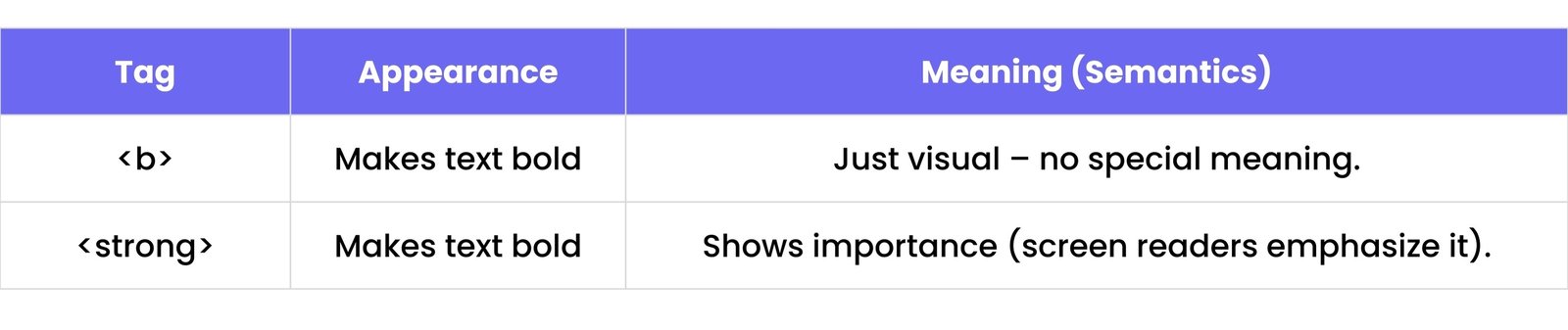
64. What is the difference between <b> and <strong>?
Both <b> and <strong> make text look bold, but they tell the computer different things:
So, it's usually better to use <strong> when you want to tell the computer that the text is important, not just make it look bold.
65. What is the difference between <i> and <em>?
Just like with bold text, <i> and <em> both make text look italic, but they have different meanings:
So, use <em> when you want to tell the computer that a word or phrase is important and should be emphasized, not just styled italic.
66. How do you create a tooltip in HTML?
A tooltip is like a tiny little pop-up hint that appears when you move your mouse over something on a webpage! You can easily make one using the title attribute on almost any HTML tag.
<button title="Click to submit the form">Submit</button>
<a href="#" title="This is a link to my homepage">Home</a>
The text you put inside the title attribute will be the message that pops up!
67. What is the target attribute used for?
The target attribute is like a little instruction you give to a link (<a> tag) that tells the browser WHERE to open the new page when someone clicks it.
<a href="https://example.com" target="_blank">Open in new tab</a>
The most common values for target are:
_self: This is the default! It opens the link in the SAME browser tab or window you're already using._blank: This is the popular one! It opens the link in a BRAND NEW browser tab or window, so your original page stays open.
68. How do you link CSS to HTML?
CSS is like the clothes for your HTML webpage – it makes it look pretty! To connect your HTML to your CSS, you use the <link> tag inside the <head> section of your HTML file.
<head>
    <link rel="stylesheet" href="style.css">
</head>
rel="stylesheet" tells the browser, "This is a stylesheet!"href="style.css" tells the browser WHERE to find your CSS file.
This is the best way to link your CSS because it keeps your styles separate and organized!
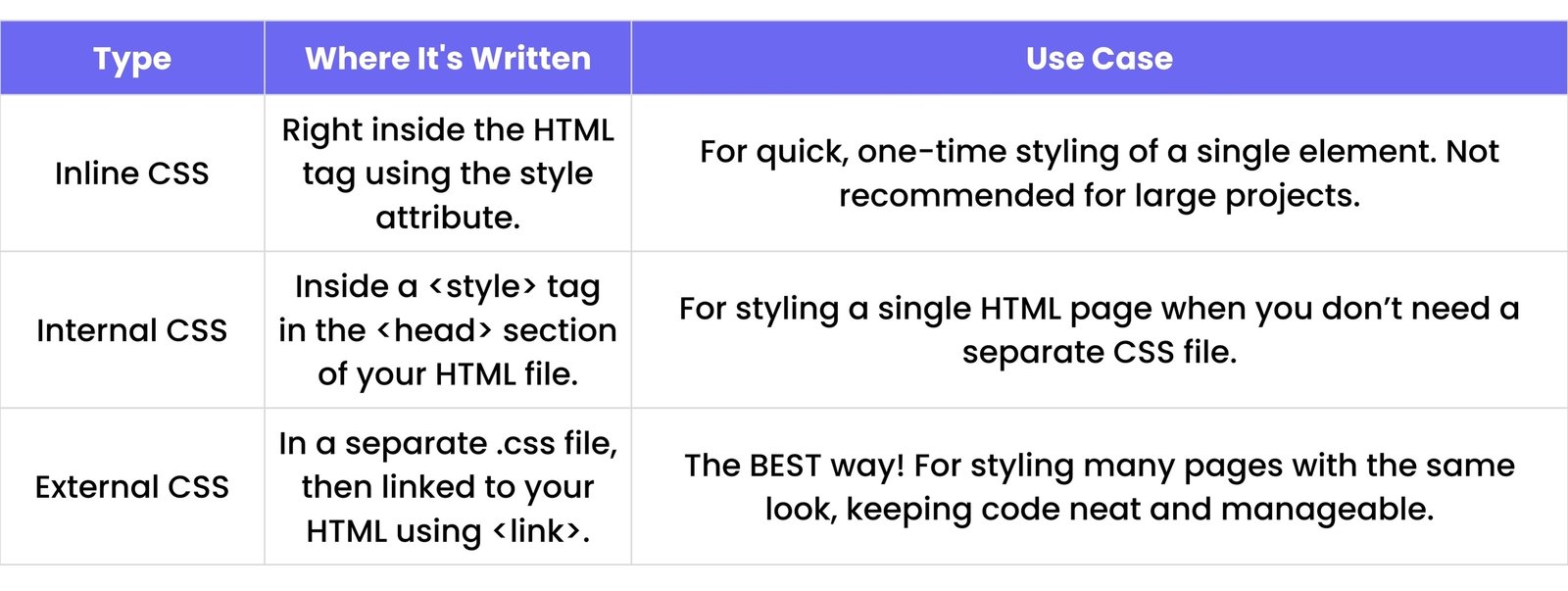
69. What is the difference between inline, internal, and external CSS?
There are three main ways to give your HTML elements their "clothes" (CSS styles):
Example of Inline CSS:
<p style="color: red; font-size: 18px;">Hello, I am red!</p>
70. What are deprecated tags in HTML5?
Deprecated tags are like old, outdated toys that we don't play with anymore because there are much better, newer toys available! In HTML5, these are tags that used to be used but are now considered old-fashioned and should not be used in new websites.
Why? Because they often just controlled how things looked, and now we use CSS for all the styling! Keeping styling separate from HTML makes your code cleaner and easier to change.
Examples of deprecated tags:
<font>: Used to change text color, size, etc. Now use CSS (color, font-size).<center>: Used to center text. Now use CSS (text-align: center;).<big>, <strike>, <u>: Used for visual styles. Now use modern CSS properties.
They might still work in old browsers, but it's best to avoid them!
71. What is the <noscript> tag used for?
The <noscript> tag is like a backup plan! It's used to show a special message or different content only when someone's web browser has JavaScript turned off, or if their browser doesn't understand JavaScript.
<script>
    document.write("Hello, JavaScript is on!");
</script>
<noscript>
    <p>Your browser does not support JavaScript, or it is turned off. Please enable JavaScript to see the full content!</p>
</noscript>
It's a way to make sure your website still makes sense, even if some fancy parts can't run.
72. What is the purpose of the <base> tag?
The <base> tag is like setting a default "home address" for all the links and pictures on your webpage! You put it in the <head> section.
<head>
    <base href="https://example.com/images/" target="_blank">
</head>
<body>
    <img src="my-picture.jpg" alt="My Picture"> <!-- This will load from https://example.com/images/my-picture.jpg -->
    <a href="about.html">About Us</a> <!-- This will open https://example.com/images/about.html in a new tab -->
</body>
If you have many links or images that are all in the same folder or on the same website, this tag saves you from typing the full address every single time!
73. What is the rel attribute in <link>?
The rel attribute in the <link> tag is like a label that tells the browser, "Hey, this file I'm linking to has THIS kind of relationship with my current HTML page!"
<link rel="stylesheet" href="style.css">
<link rel="icon" href="favicon.ico" type="image/x-icon">
In the first example, rel="stylesheet" tells the browser that "style.css" is a file that contains styles for the page. In the second, rel="icon" says it's the favicon. It helps the browser know how to use the linked file correctly!
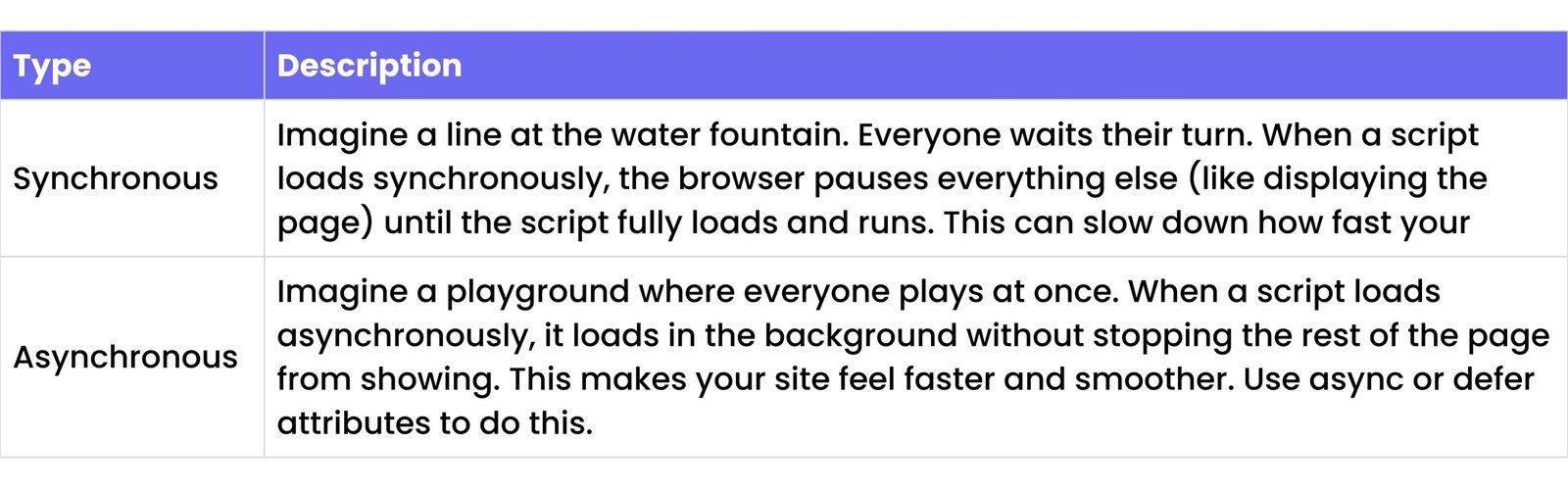
74. What is the difference between synchronous and asynchronous script loading?
This is about how your webpage loads JavaScript files, and it can make a big difference in how fast your page feels!
Asynchronous loading is almost always better for making your website feel speedy!
75. What is the srcset attribute used for in <img>?
The srcset attribute is like giving your <img> tag a whole wardrobe of different sized pictures! Instead of just one picture, you can tell the browser, "Here are a few versions of this image: a small one, a medium one, and a big one."
<img src="small.jpg"
     srcset="medium.jpg 640w, large.jpg 1024w"
     alt="Example Responsive Image">
Then, the browser is super smart and picks the best image for the user's screen size and resolution. If someone is on a small phone, it loads the small picture (saving data!). If they're on a big, super-clear screen, it loads the big, high-quality picture. This makes your website faster and look great on all devices!
76. What are ARIA roles in HTML?
ARIA stands for "Accessible Rich Internet Applications." ARIA roles are like special labels you add to HTML elements to help people who use screen readers or other special tools to browse the web. They tell these tools what a part of your webpage does, even if it's not a standard HTML button or link.
<div role="button" tabindex="0">Click Me</div>
<div role="alert">Something went wrong!</div>
For example, a regular <div> doesn't act like a button. But if you add role="button", a screen reader will know to tell the user, "This is a button!" This makes your website much easier for everyone to use, especially people with disabilities.
77. How do you create a progress bar in HTML?
You can make a simple progress bar in HTML using the <progress> tag! It's like a visual meter that shows how much of a task is done.
<progress value="60" max="100">60% complete</progress>
value: This is how much progress has been made (like 60).max: This is the total amount needed to be done (like 100).
The text between the tags ("60% complete") is shown if the browser can't display the progress bar.
78. How do you use the <meter> tag?
The <meter> tag is like a gauge or a dial that shows a value within a known range, like how much storage space is left on your computer, or a student's score on a test. It's for showing a measurement, not how much progress has been made on a task (that's what <progress> is for!).
<meter value="6" min="0" max="10">6 out of 10</meter>
value: The current amount (like 6).min: The lowest possible amount (like 0).max: The highest possible amount (like 10).
79. How do you specify language in HTML?
It's important to tell the browser what language your webpage is written in! This helps search engines, translation tools, and screen readers. You do this by adding the lang attribute to your very first <html> tag.
<html lang="en"> <!-- This page is in English -->
<html lang="es"> <!-- This page is in Spanish -->
This tells everyone, "This page is written in English!" (or whatever language code you use).
80. What is the lang attribute used for?
The lang attribute is like a little flag you put on your HTML page (or even on a smaller part of it) to tell everyone what language the text is in. It's super helpful for:
- Browsers: They might show different fonts or spell-check correctly.
- Screen Readers: These tools read the page aloud for people who can't see. Knowing the language helps them speak with the correct accent and pronunciation.
- Translation Tools: If someone uses a tool to translate your page, this helps it do a better job.
- Search Engines (SEO): It helps Google know what language your content is in, so it can show it to the right people.
Examples:
lang="en" – Englishlang="hi" – Hindilang="gu" – Gujarati
Advanced Level Questions
81. What are microdata and how are they used in HTML?
Microdata is like adding tiny, secret labels to specific pieces of information on your webpage that only computers (especially search engines) can understand. It helps them know exactly what something is, like "this is a product," "this is its price," or "this is a review score."
Why is this cool? Because it makes your website show up with extra fancy stuff in Google search results! Imagine seeing the price and star rating of a product right in the Google search list – that's often thanks to microdata!
<div itemscope itemtype="http://schema.org/Product">
    <h1 itemprop="name">Super Cool Widget</h1>
    <p itemprop="description">This widget does amazing things!</p>
    Price: <span itemprop="price">$19.99</span>
</div>
82. What is the Shadow DOM and how is it related to HTML?
Imagine you're building a super complex LEGO castle, and you want to build a special, secret room inside it. You want to make sure the walls, floor, and decorations of that room don't mess up the rest of your castle, and no one from outside can accidentally change them.
That's what Shadow DOM is! It's a special, hidden part of the webpage's "family tree" (the DOM) that lets you create a little secret area for your custom HTML elements (like a fancy button or a special video player). This secret area has its own HTML and CSS that are totally separate from the rest of your page. This means the styles you use inside the Shadow DOM won't accidentally change other parts of your page, and vice-versa.
It's super useful for building "Web Components" (which we'll talk about next) because it keeps them neat, tidy, and self-contained!
83. How do Web Components work in HTML?
Web Components are like making your own brand new, custom LEGO bricks that you can use over and over again on your webpage! Instead of just using standard HTML tags like <div> or <p>, you can create your own special tags, like <my-awesome-button> or <custom-video-player>.
Web Components are built using a few special technologies:
- Custom Elements: This lets you define your new HTML tags.
- Shadow DOM: This is the "secret room" we just talked about, keeping your component's HTML and CSS private.
- HTML Templates: This lets you write HTML code that won't show up right away but can be used later to build your custom components.
You use JavaScript to tell your custom component how it should behave (what happens when you click it, what data it shows). Once you've made your custom component, you can use it just like any other HTML tag, making your code much cleaner and easier to reuse!
<!-- Using your custom element -->
<my-awesome-button text="Click Me!"></my-awesome-button>
84. What is the purpose of the <template> tag?
The <template> tag is like a blueprint or a hidden cookie cutter for HTML! You put HTML code inside it, but that code won't show up on your webpage when it first loads. It just sits there, waiting to be used.
Why is this cool? Because you can use JavaScript to grab that hidden HTML blueprint, make copies of it, and then put those copies onto your live webpage whenever you need them! This is super handy for building things that appear many times, like items in a shopping cart or rows in a table.
<template id="product-card-template">
    <div class="product-card">
        <h3>Product Name</h3>
        <p>Price: <span class="price"></span></p>
    </div>
</template>
85. What is the use of the <slot> element?
The <slot> element is used inside a "Web Component" (those custom LEGO bricks we talked about) to mark a special spot where you can put content from outside the component. It's like a placeholder that says, "Hey, whatever content someone puts inside my custom tag will show up right here!"
Imagine you have a custom <my-card> component. You want to be able to put different titles and descriptions inside each card.
Inside your custom component's definition (often in JavaScript with Shadow DOM):
<!-- Inside the custom component's template -->
<div class="card-frame">
    <h2><slot name="card-title">Default Title</slot></h2>
    <p><slot>Default Description</slot></p>
</div>
When you use the custom component:
<my-card>
    <span slot="card-title">My Special Card!</span>
    <p>This is the content for my special card.</p>
</my-card>
The content you put inside the <my-card> tags will magically appear in the <slot>s!
86. What is the Accessibility Tree in HTML?
Imagine your webpage is a big, colorful puzzle. For people who use special tools like screen readers (which read the webpage aloud), they need a way to understand that puzzle. The "Accessibility Tree" is like a simplified, super-organized version of your webpage's puzzle, made just for these tools!
It's built from:
- Your HTML tags (like
<h1> for headings, <button> for buttons).
- ARIA roles (those special labels like
role="button").
- Other helpful attributes (like
alt text for images, or label for form inputs).
If your HTML is neat and uses semantic tags and ARIA roles correctly, your Accessibility Tree will be clear and easy for everyone to understand, making your website friendly for people with disabilities!
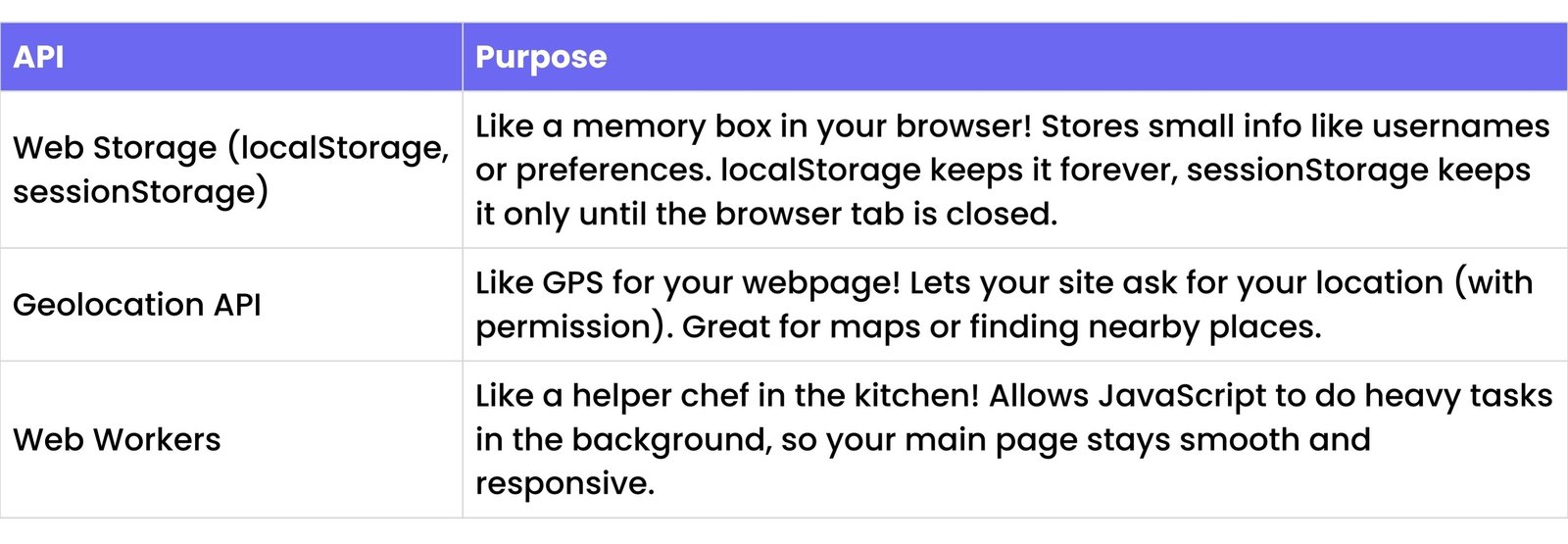
87. What are differences between HTML5 APIs like Web Storage, Geolocation, and Web Workers?
HTML5 brought many cool "APIs" (Application Programming Interfaces). Think of APIs as special tools that let your webpage do more advanced and interactive things, without needing extra programs.
These APIs make HTML pages much more powerful and interactive, almost like regular computer apps!
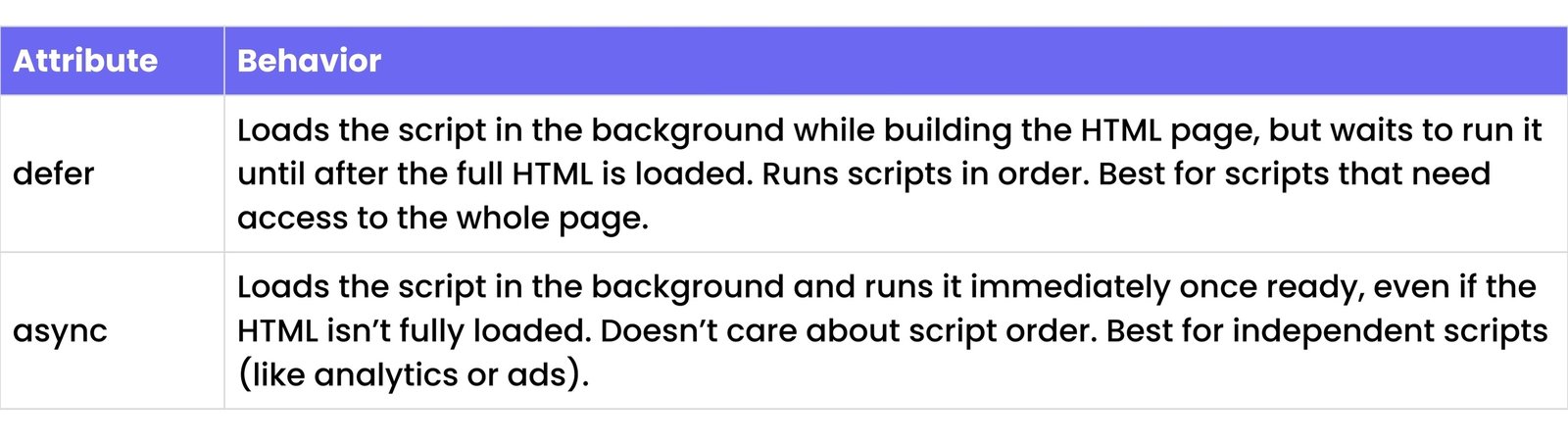
88. How does <script defer> differ from <script async>?
Both defer and async are special words you can add to your <script> tags to make your JavaScript load in a "non-blocking" way (which means your page loads faster!). But they work a little differently:
So, defer is like waiting for all your LEGO bricks to be laid out before you start playing with them, while async is like playing with a LEGO brick as soon as you get it, even if the rest of the set isn't out yet!
89. What is the purpose of the srcdoc attribute in <iframe>?
The srcdoc attribute is a super cool trick for <iframe> tags! Normally, an <iframe> loads a whole different webpage from a link (using the src attribute). But with srcdoc, you can write the entire HTML code for the little webpage directly inside the <iframe> tag itself!
<iframe width="300" height="150"
        srcdoc="<h1>Hello from inside!</h1><p>This HTML is written right here.</p>">
</iframe>
It's really useful for showing small examples, demos, or little snippets of HTML without needing to create a whole separate file for them!
90. What is CORS and how does it relate to HTML?
CORS stands for "Cross-Origin Resource Sharing," and it's like a strict security guard for your webpage's data! Imagine your website is a house, and it wants to get some ingredients (data) from another house (another website or "origin").
Normally, browsers have a rule: your website can only get data from its own house (its own website address). CORS is a special rule that lets the other house (website) say, "Okay, it's safe for YOUR house to get my ingredients!" without breaking the security rules.
It's mostly handled by the web servers, but as an HTML coder, you need to know about it because if your webpage tries to get data from another website that hasn't given permission, the browser will block it, and your webpage won't work correctly!
91. What are Service Workers and how do they relate to HTML?
Service Workers are like super-powered secret agents that live in your user's web browser! They are special JavaScript files that run in the background, even when your webpage isn't open. They don't directly change your HTML, but they work with your HTML page to make it feel more like a real app!
What cool things can they do?
- Offline Support: They can remember parts of your website so it works even if you don't have internet! Imagine playing a game or reading an article offline.
- Faster Loading: They can store (cache) your website's files, so the next time you visit, it loads super fast!
- Push Notifications: They can send you little messages (like "New blog post!") even when you're not on the website.
So, while you write them in JavaScript, they make your HTML page a much better and more reliable experience for users.
92. What is the manifest file and how is it linked in HTML?
The manifest file (usually named manifest.json) is like a special instruction book for your webpage, especially if you want it to act like a real app on someone's phone or computer! It's a small file that tells the browser important things about your web app, like:
- What the app's name should be (when installed).
- What icons to use for the app.
- What colors the app should use (like the theme color).
- How it should start up.
You link this manifest file to your HTML page using a <link> tag in the <head> section, just like you link CSS:
<link rel="manifest" href="/manifest.json">
This is a key part of making a "Progressive Web App" (PWA), which makes your website feel like a native app!
93. How does the <picture> tag work?
The <picture> tag is like giving your webpage a super smart photo album! Instead of just one image, it lets you provide different versions of the same picture, and the browser picks the best one to show based on things like screen size, resolution, or even if the user is in dark mode.
<picture>
    <source srcset="large-image.webp" media="(min-width: 800px)" type="image/webp">
    <source srcset="medium-image.webp" media="(min-width: 400px)" type="image/webp">
    <img src="small-image.jpg" alt="A beautiful landscape">
</picture>
It uses <source> tags with rules (like media="(min-width: 800px)") to tell the browser which image to use. If none of the <source> rules match, it falls back to the regular <img> tag inside. This helps your website load faster and look perfect on every device!
94. How do you optimize HTML for SEO?
SEO stands for "Search Engine Optimization," and it's like making your webpage super friendly for search engines (like Google) so they can find it easily and show it to more people! Optimizing your HTML for SEO means making sure your code helps Google understand what your page is about.
Here are some ways to do it:
- Use Semantic Tags: Use meaningful tags like
<article>, <header>, <nav>, <footer>, <main>. This helps Google understand the structure of your content.
- Good Titles and Descriptions: Make sure your
<title> tag and your meta description (<meta name="description">) are clear and tell people what your page is about.
- Alt Text for Images: Always add
alt text to your <img> tags. This helps Google understand what your pictures are, and it's great for accessibility too!
- Headings: Use headings (
<h1>, <h2>, etc.) to organize your content like a book. <h1> should be your main topic.
Good HTML structure is like a clear roadmap for search engines, helping more people discover your awesome website!
95. What are the security concerns in HTML?
HTML itself is like a harmless building block – it's just for structure! But when you combine it with other things like JavaScript or forms, some tricky security problems can pop up if you're not careful.
- Untrusted Scripts (JavaScript): If you let bad JavaScript code run on your page, it can do sneaky things.
- Form Misuse: If your forms aren't set up securely, bad people might try to steal information like passwords.
- Embedding Bad Content: If you embed content from untrusted places (like iframes from shady websites), they could try to harm your users.
So, while HTML is safe, always be careful when adding other code or letting users put information on your page!
96. How do you prevent XSS in HTML forms?
XSS stands for "Cross-Site Scripting," and it's like a bad guy trying to sneak a tricky message into your form! Imagine someone types some secret code into a comment box on your website. If your website isn't careful, it might show that secret code to other people, and that code could do bad things (like steal their information!).
To stop XSS, you need to be super careful with anything people type into your forms:
- Clean Up Input: Always clean up or "sanitize" what users type. Get rid of any weird or dangerous code before you save it or show it to others.
- Use HTML Escaping: This means changing special characters (
<, >, ", &) into safe versions (like <, >, ", &). So, if someone types <script>, it just shows up as plain text, not as a running script!
- Don't Insert Raw Input: Never just take what a user types and put it directly onto your webpage or into JavaScript without cleaning it first.
Always treat anything a user types as if it might be a trick, and always clean it up!
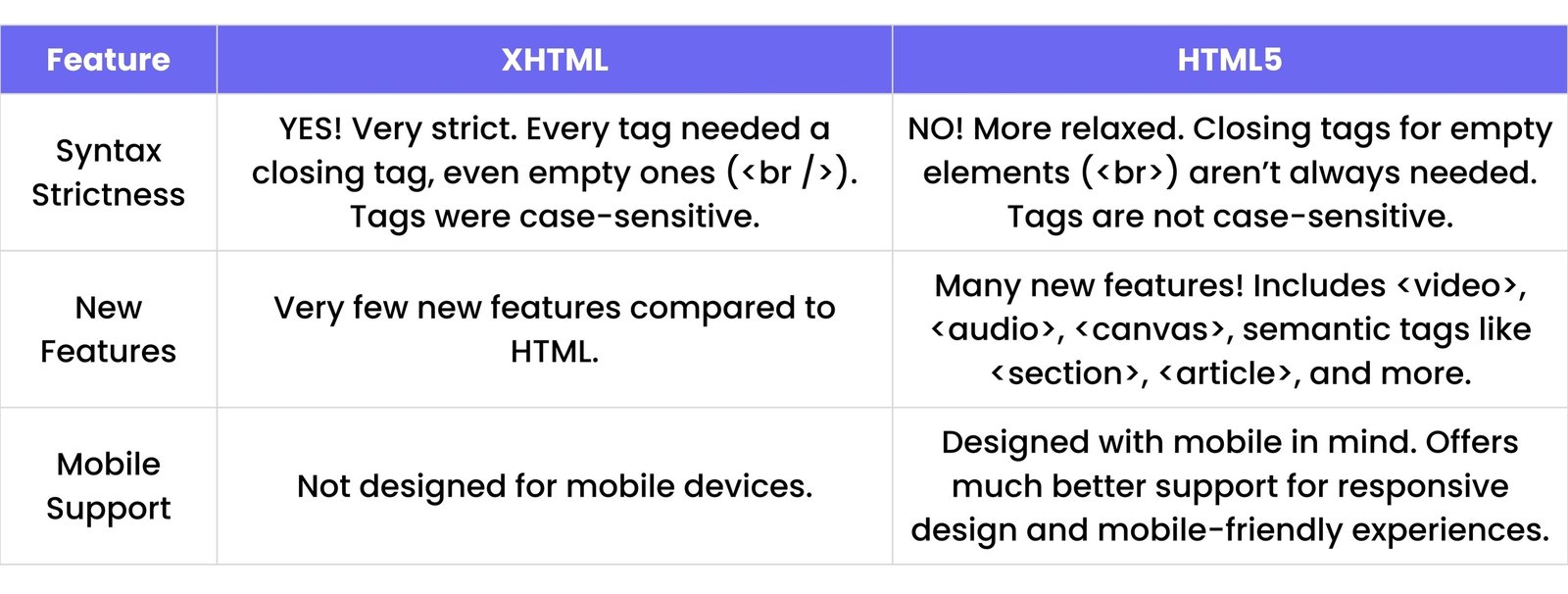
97. What is the difference between XHTML and HTML5?
XHTML is like HTML's very strict older sibling, and HTML5 is the more relaxed and modern one!
HTML5 is the newer, more flexible, and widely used version today because it's easier to work with and has more powerful features for modern websites!
98. How do you validate an HTML document?
Validating an HTML document is like checking your homework to make sure it's perfect! It means making sure your HTML code follows all the rules and doesn't have any mistakes.
You can use special online tools for this, like the W3C Markup Validation Service. You just paste your HTML code, and it tells you if you have any:
- Missing tags (like an opening
<div> without a closing </div>).
- Errors in how you typed the tags.
- Problems that might make your website hard for people with disabilities to use.
Validating your code makes it super clean, reliable, and helps it work well in all browsers!
99. What are the limitations of HTML?
HTML is super great for building the "bones" or "structure" of your webpage, like a skeleton! But just like a skeleton can't walk or talk on its own, HTML has some limits:
- Can't Add Logic: HTML can't "think" or make decisions (like "if this happens, then do that"). It's just for showing content.
- Can't Store or Process Data: It can't remember information or do calculations.
- Can't Style Pages: HTML alone makes pages look plain. It can't add colors, change fonts, or make things pretty. That's CSS's job!
- Can't Create Interactions: HTML can't make things move, respond to clicks, or fetch new information. That's JavaScript's job!
So, HTML needs its friends, CSS and JavaScript, to build a full, beautiful, and interactive website!
100. How does HTML interact with CSS and JavaScript in modern web development?
Think of building a website like building a superhero team! Each member has a special job:
- HTML (The Skeleton/Structure): HTML is the superhero that builds the strong bones and body of the webpage. It decides where all the words, pictures, and buttons go.
- CSS (The Clothes/Style): CSS is the superhero that gives the webpage its amazing clothes and style! It adds all the colors, chooses the cool fonts, makes things line up perfectly, and makes the page look beautiful.
- JavaScript (The Brains/Actions): JavaScript is the superhero that gives the webpage its brain and makes it move! It makes things interactive – like when you click a button and something happens, or when a picture slides across the screen, or when the page talks to a server to get new information.
Together, these three superheroes work as a super team to build almost every amazing website you see on the internet today!